Staff
The Staff video tutorial shows how to add a staff member and what they see when they sign in.
Overview
Staff members are people on your team who help you run the platform. Each staff member has a role, which decides what they can see and do. Create roles first in Personnel management > Role & permission.
Add a staff member
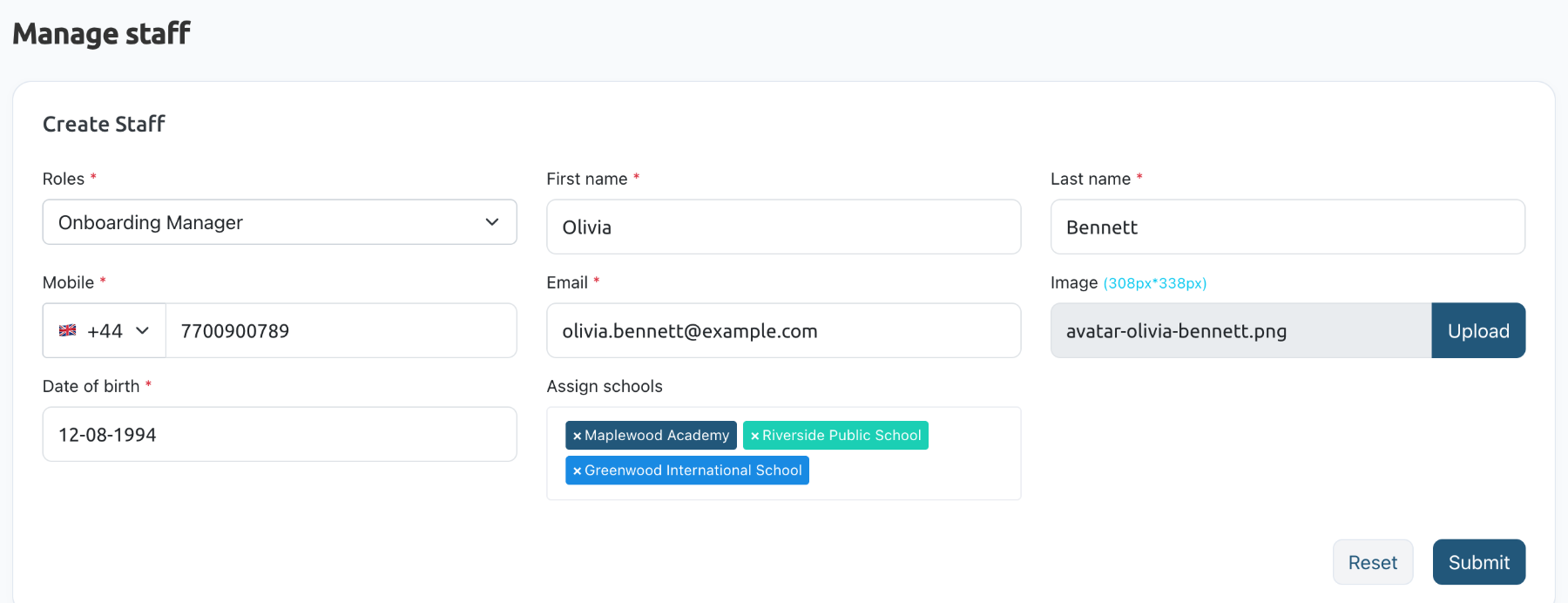
- Navigate to Personnel management > Staff.
- In Create Staff, choose the staff member's Roles, for example Onboarding Manager.
- Enter their First name and Last name.
- Choose the country code and enter their Mobile number.
- Enter their Email. They sign in with it.
- Optionally, click Upload to add their Image, which should be 308 × 338 px.
- Enter their Date of birth.
- In Assign schools, pick the schools they look after. Those schools see this staff member's details as their support contact.
- Click Submit.
Staff sign-in
Staff members sign in on the usual sign-in page with their email address. Their password is their mobile number, without the country code. They leave School code empty.
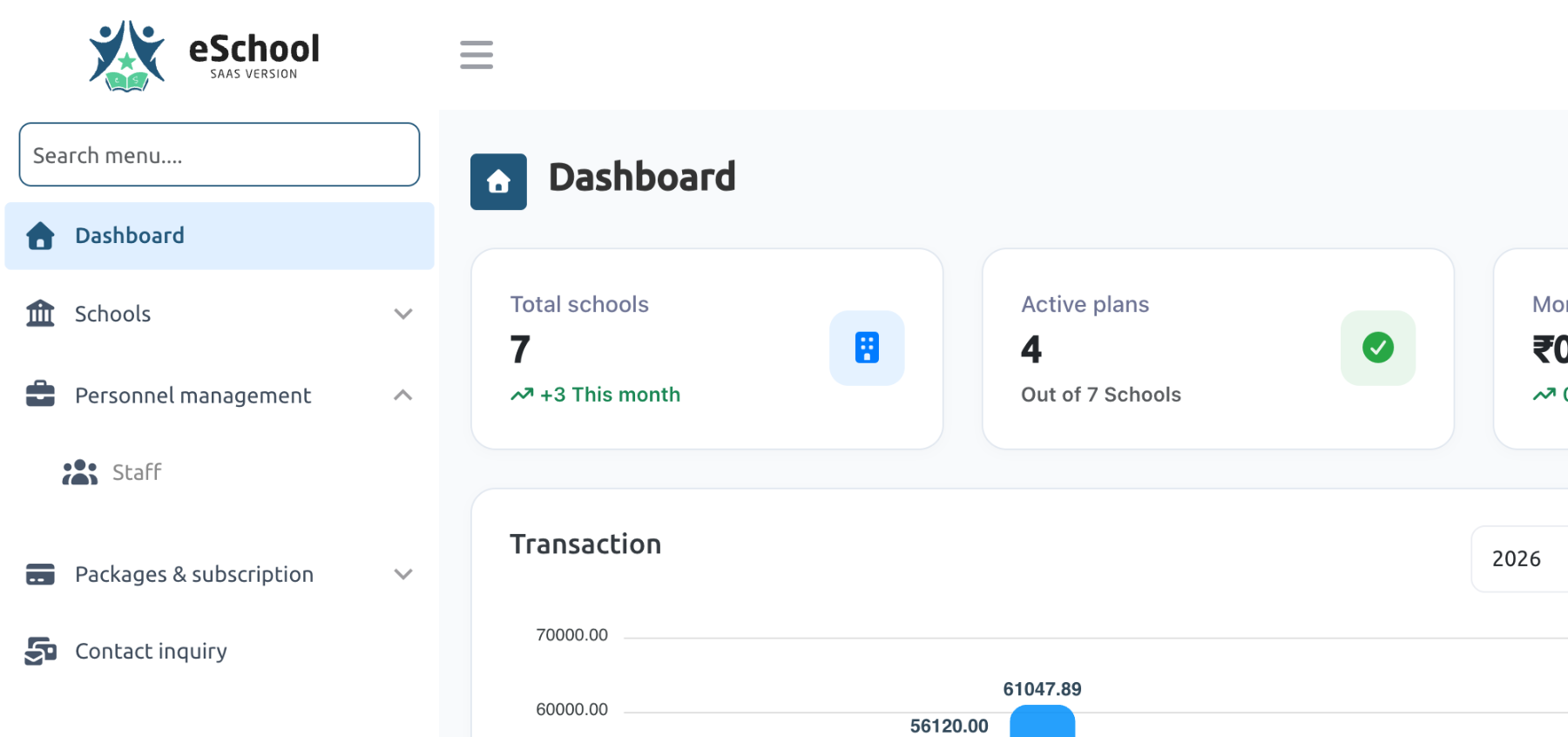
After signing in, their menu shows only what their role allows. For example, an Onboarding Manager with the Schools, contact inquiry, package, subscription and staff permissions sees Schools, Staff, Packages & subscription and Contact inquiry, but not Role & permission, Add-ons, Email schools or Settings.
Staff list
The Staff List under the form shows your staff members. Use Active and Inactive to switch between active and inactive staff.